First, you will need to log in to webmail. The easiest way is via this link: https://webmail.yorksoftltd.com or if you have your own link: https://webmail.yourdomain.com
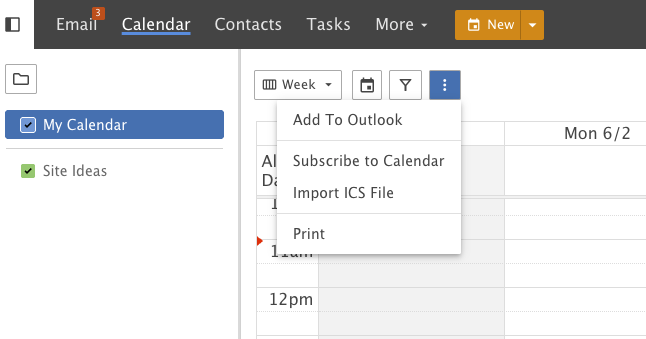
Click Calendar on the top bar.
Select the calendar you wish to add to Outlook.
Click the 3 dots to expose the small drop-down with the option "Add To Outlook"
Configure Connection: A modal window will appear, allowing you to select the version of Outlook you're using and adjust other settings like display names and descriptions.
Initiate the Connector: Click "OK" to begin the connection process.
Authorise in Outlook: Outlook will prompt you to allow SmarterMail to connect, and you'll need to click "Yes" to grant access.
The calendar will now be available in your Outlook account and display alongside your existing calendars.