May 06, 2024
How to add another layer of security on your email accounts.
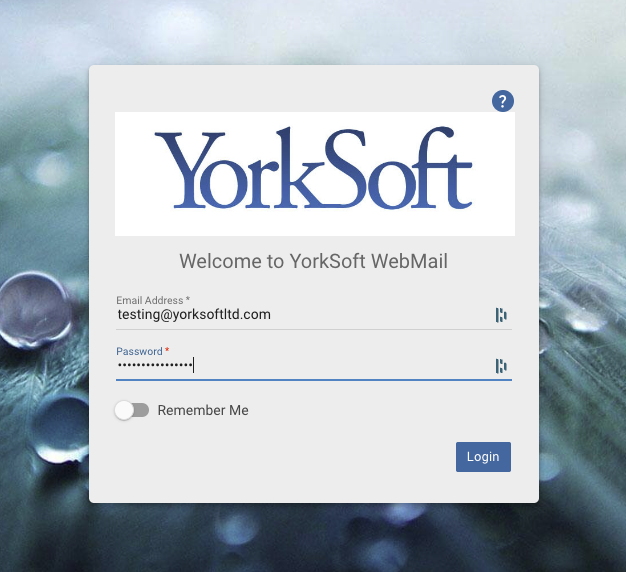
Firstly login to webmail.
The webmail address is likely to be setup on your own domain (https://webmail.yordomain.com) but if its not you can access it here: https://webmail.yorksoftltd.com
Once logged in, select "Settings" from the drop down menu.
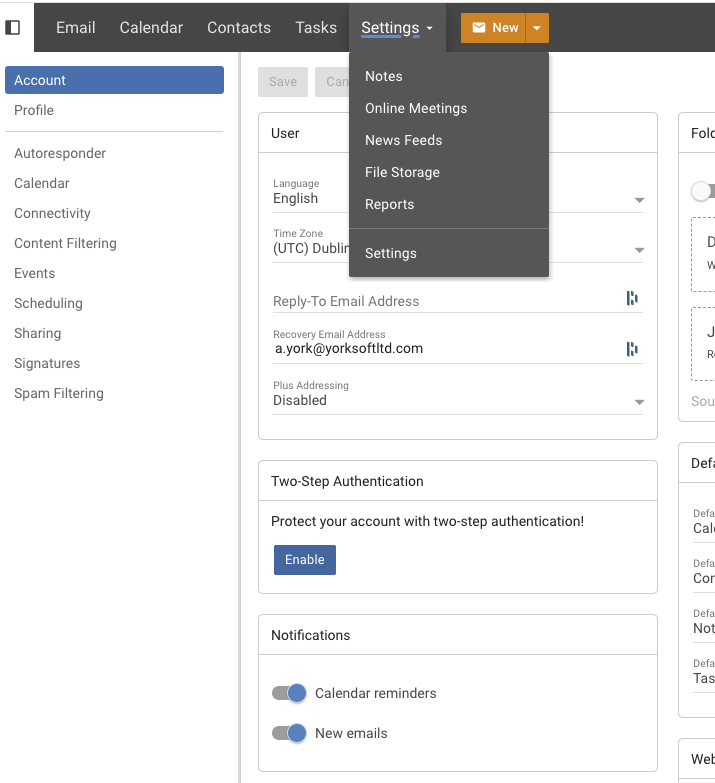
Here you will see the "Two-Step Authentication" heading.
Click the "Enable" button.
This will bring up a box where you enter a recovery email address. Enter the address you wish to be your recovery address.
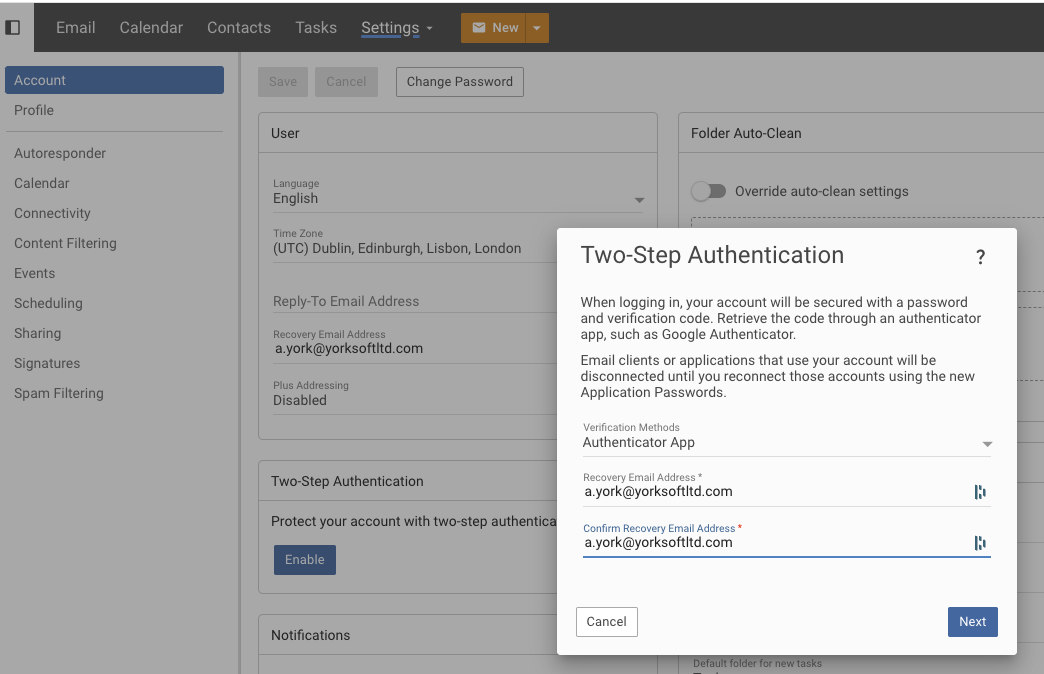
Click "Next"
This will now bring up a QR code, which you'll need to scan using your Authenticator App (e.g. Google Authenticator, Microsoft Authenticator).
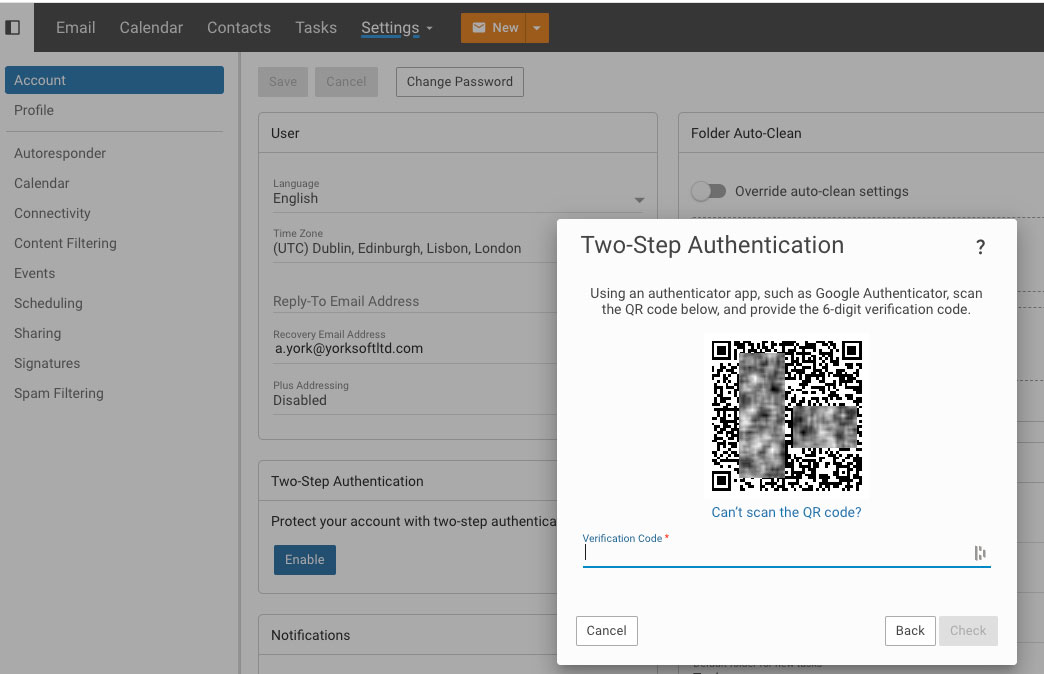
Once you've scanned, the authenticator should return a 6 digit code to enter into the verification box below the QR code.
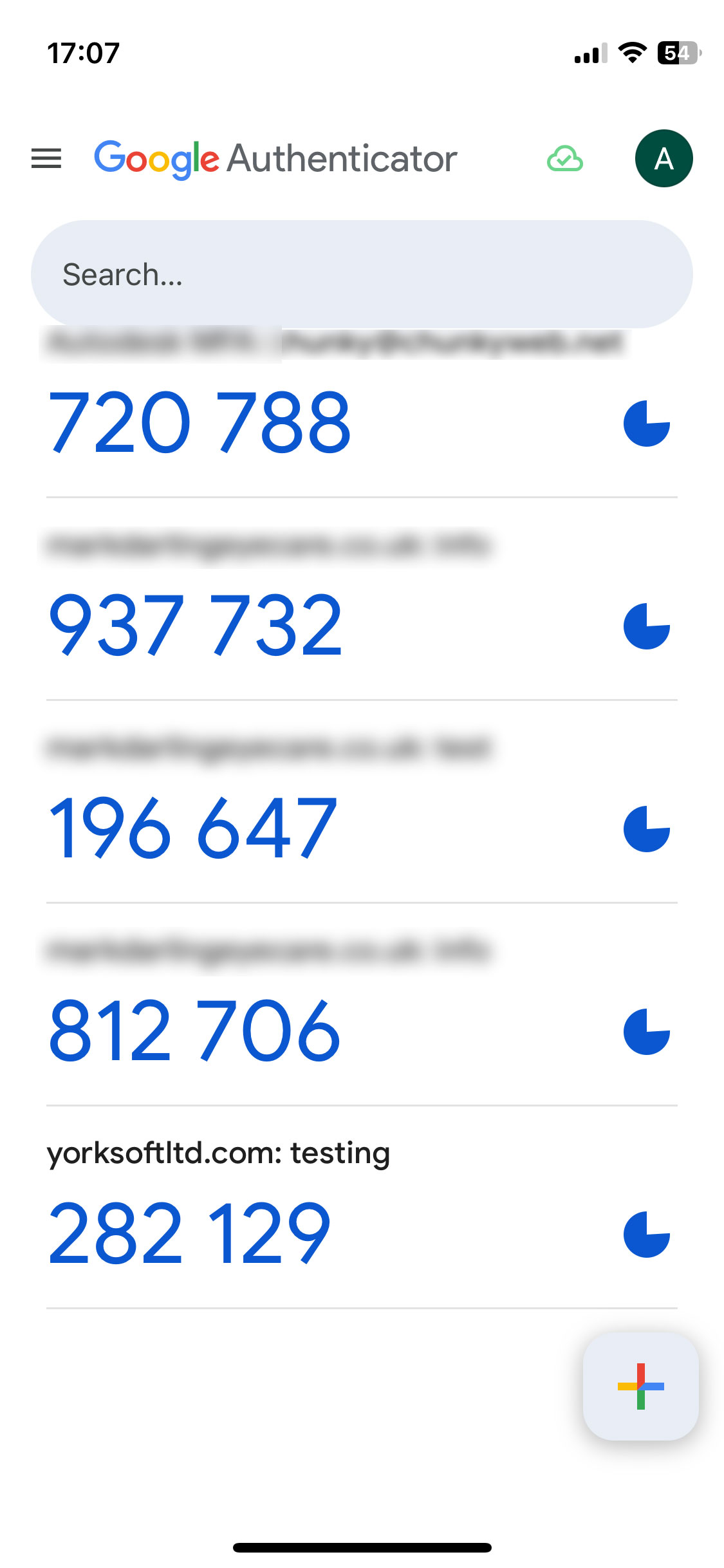
Once you enter the code your app is then linked to that account and you'll need to use the Authenticator app to login to webmail.
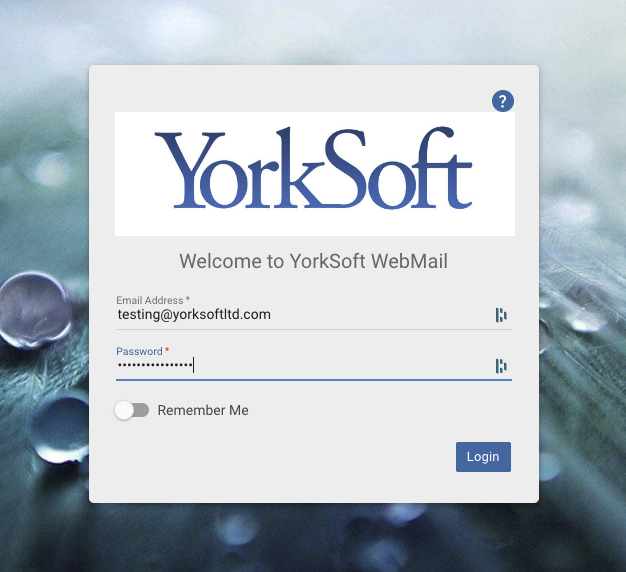
Go to your webmail login page.
Enter your email address and email password.
This will then ask you for the 6 digit code in to the box provided.
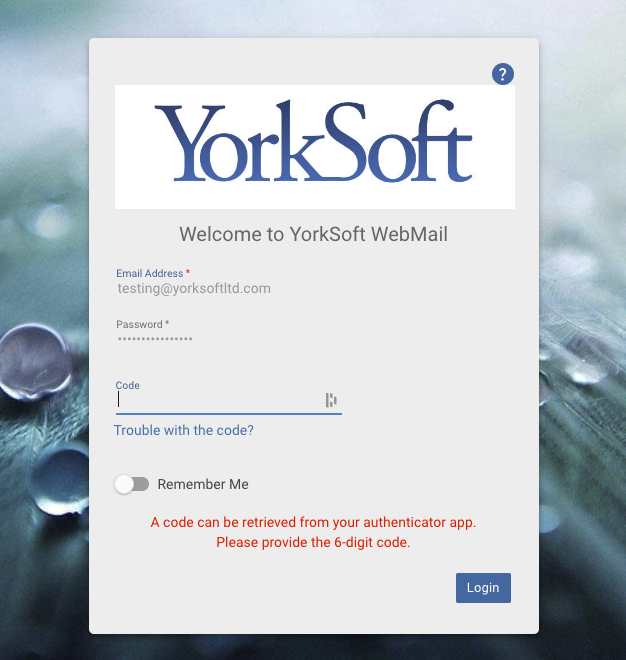
hat should be it, you're all setup with 2FA.
NOTE:
Webmail you use the original password at login.
Your other apps will use the 2FA password.